The dashboard is the page you land on after signing in. It does not show everything the community offers, only what needs your attention right now: requests, tasks that are due, completions waiting to be rated, misses, rules. Which blocks appear depends on your role — servant and queen see the same dashboard from two sides.
This guide first explains the layout, then the three boxes that everyday life revolves around, and finally the question asked most often: What is the difference between a task and a rule — and when do I use which?
As in the other guides, Femdom (queen) and Submissive (servant) accompany us.
How the dashboard is laid out
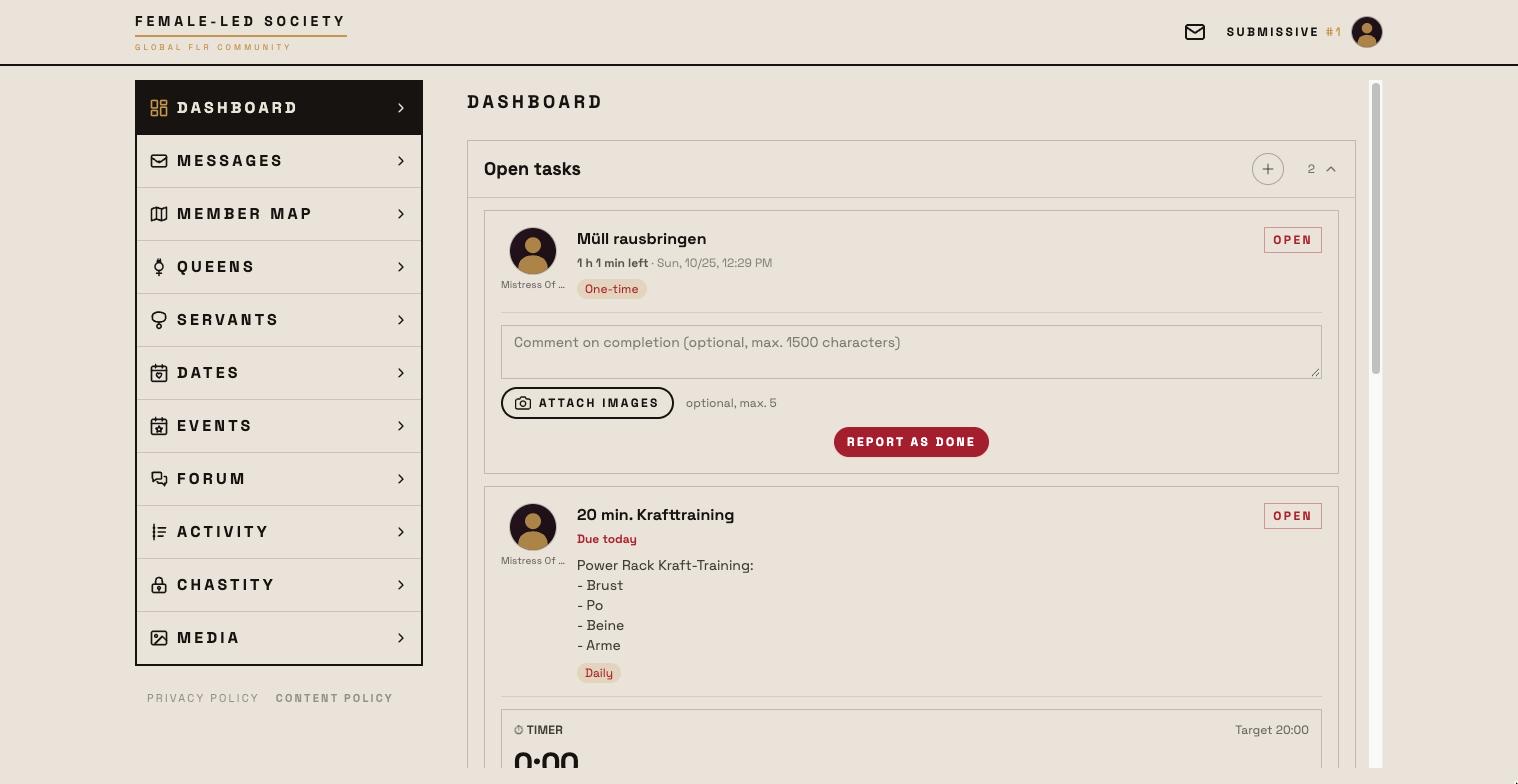
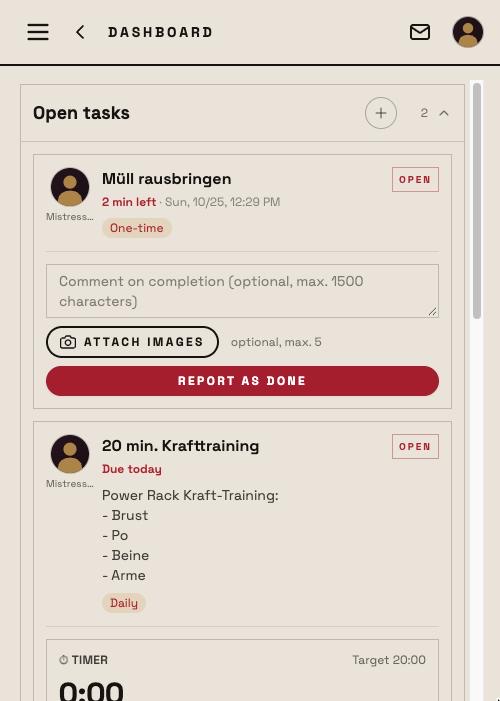
The dashboard consists of boxes. Each box has a header with a title, a number (how many entries it holds) and an arrow to expand or collapse it. Boxes that currently hold nothing stay away — an empty dashboard is good news. Boxes in which you can create something carry a + on the right.
From top to bottom:
First, whatever needs a decision from you. These blocks sit at the top for both roles and disappear once they are dealt with:
- Complete your profile — as long as profile picture, location, services or the bonding preference are missing. Without a profile picture you cannot message anyone new or send requests.
- The offer to switch on push notifications. The reminder to add the app to your home screen is not here but in a bar at the bottom of every page — as long as you use FLS in the browser on your phone.
- Video rooms of events that are running or about to open.
- Connection requests and friend requests — with Accept and Decline.
- Event waiting list (requests to join your events) and Media access requests (who asks for access to a protected medium).
Then the day-to-day work. This is where the roles differ:
| Box | Servant | Queen |
|---|---|---|
| Open tasks | Everything you have to complete, sorted by deadline. + creates a task. | — |
| Tasks | — | Three sections: completions by your servants waiting for your rating; their still open tasks; recurring tasks reported today. + creates a task. |
| Misses and violations | What you missed or reported yourself | What you have to decide on: educational measure or mercy |
| Open educational measures | What you have to work through | What you imposed and is still open |
| Chastity | Your planned, running or just opened lock-up | Lock-ups of your servants |
| Rules | Rules that apply to you. + creates a rule. | Rules of your servants, to rate. + creates a rule. |
| Goals | Your goals | The goals of your connected servants |
The Rules box starts collapsed. Rules apply permanently and are there to look up; expanded, they would push everything below out of view. Whether a box is open or closed is remembered until you leave the dashboard.
The “Open tasks” box (servant)
This is your workload. Each task is a card with title, description, interval and the deadline:
- Due today, 1 day left, 3 days left — for daily, weekly and monthly tasks and for one-off tasks with a date.
- 2 h 15 min left or 40 min left — for one-off tasks with a deadline in hours; the last hour is red.
- Overdue in red once the deadline has passed.
Cards are sorted by deadline: whatever is due first is at the top.
Completing happens right on the card. No intermediate step is needed:
- Fill in the proof fields the queen asked for — numbers, yes/no, text. Required fields are marked; without them the task cannot be closed.
- Attach pictures (up to five) if a picture proof is required or you want to add one. Each selection is added to the ones already chosen — so several camera shots can be attached one after another; the × on a thumbnail removes a single one.
- Write a comment if one is required or you have something to say.
- If the task has a timer, start it before you begin and report only afterwards; with a mandatory timer there is no way around it.
- Report as done.
A short “Good Boy” then runs across the screen and the card leaves the list. Recurring tasks you already reported today stay below the open ones, greyed out with a green check, and show the deadline of the next completion — so you see at a glance what is still missing today and what is already done.
Made a typo? Correct values sits on the completed card for two hours, as long as the queen has not rated yet. Extra fields and comment can be corrected, pictures cannot.
Via the + in the header you create a task yourself — for you alone or with your queen as the recipient of the completion. The form is explained in the Tasks guide.
The “Tasks” box (queen)
The other side, in three sections. The counter in the header shows what needs attention: completions to rate plus open tasks.
To rate. Here the completions of your servants wait for your verdict. Each card shows the servant, the task, his proofs (numbers, answers, pictures, comment) and the rating:
- Rate now opens the rating.
- 0 to 5 stars — tap or drag your finger across the row.
- Optionally a comment on the rating.
- Public — whether the rating appears in the activities and on the servant's profile. Preset to what the task is set to.
- Submit rating.
If a servant reported the same task several times (a weekly one twice, say), you rate the oldest completion first; the card tells you how many are still waiting. After Done the next one moves up.
Here too: Correct rating stays below the submitted rating for two hours.
Open. Below that are the tasks you assigned that your servants have not reported yet — with servant, deadline (Due today, 3 days left, hour countdown, Overdue in red) and interval, sorted by deadline. Clicking the title opens the task. Nothing to do here, just to see.
Reported today. At the bottom, greyed out with a green check, everything your servants reported today that is no longer waiting under “To rate” above — for recurring tasks with the deadline of the next completion, below it your latest rating. If the task is set to Whenever she likes, you find Rate now here: you rate the reported task as a whole, once per calendar day (next section). The section only appears if there are any.
If your device should notify you as soon as a servant completes a particular task, tick Notify me when completed under Advanced on the task. The master switch for this is Completed task in the notification settings of your profile.
Task or rule — the difference
Both are created by a queen (or by a servant for himself), both appear on the dashboard, both can be rated. Still, they are two different things:
A task is something that is done. It has an interval — one-off, daily, weekly, monthly — and therefore a due date. The servant reports it as done, the queen rates the completion. If the deadline is missed, a miss is recorded automatically the following night.
A rule is something that applies. It has no due date and no end. It cannot be reported as done because there is nothing to tick off — “No alcohol on weekdays” is either kept or broken. For the same reason it cannot be missed: only the servant knows whether he kept it. He reports a violation himself; the queen rates the rule as a whole, at most once a day.
| Task | Rule | |
|---|---|---|
| What it is | an action with a due date | a standing requirement |
| Interval | one-off, daily, weekly, monthly | none — applies until it is deleted |
| Deadline | date or hours after receipt (one-off), otherwise end of day or period | none |
| Servant reports | Done, with proofs | ✋ Rule violation, voluntarily, up to 30 days back |
| Miss | detected automatically at night | does not exist — only the self-report |
| Queen rates | every completion individually (or whenever she likes, see below) | the rule as a whole, once per calendar day |
| Stars | 0–5 | 0–5 |
| Timer, push on completion | available | not available (nothing is completed) |
| Extra fields | proofs on completion | possible — number fields build a progress series |
| Where on the dashboard | Open tasks (servant) or Tasks (queen) | the Rules box, for both |
| Where to create | + in “Open tasks”/“Tasks”, on /task, in the profile |
only via the + in the Rules box |
A task never becomes a rule and a rule never becomes a task. The task form has no “Rule” interval; in the rule form the interval is fixed. If you notice while creating that you picked the wrong one, delete the entry and create it again in the right box.
Examples
Femdom has set up both for Submissive:
- Task, daily: Weigh yourself and enter the weight — with the required field “Weight (kg)” as a decimal. Every day Submissive reports it with the value; if he skips a day, a miss shows for both of them in the morning.
- Task, one-off: Polish the shoes by Saturday — with a date. Or Write the report, 3 hours after receipt — with a deadline in hours; the card then counts down.
- Rule: No alcohol from Monday to Friday. Nothing to report, nothing to complete. If Submissive has a beer on Wednesday, he reports the violation himself. Femdom rates the rule whenever she likes — on Sundays, say, with a sentence attached.
- Rule: The form of address is always “Mistress”. Applies in every chat, every day.
When do I use which?
- Should the servant do something and show you that he did it (number, picture, comment)? → Task.
- Should something always apply without a daily report? → Rule.
- Do you want a task but not rate every single completion? → Task with rating Whenever she likes (next section).
- Should a behaviour be counted that has no fixed interval? → Rule with self-reports, or a task “whenever she likes” with a number field.
Tasks “whenever she likes”
There is a middle way. Under Advanced every task has the setting Rating by the Queen:
- After every completion (default): every report lands in the queen's Tasks box and is rated individually.
- Whenever she likes (like rules): completions stay recorded without entering the rating queue. The queen rates the task as a whole whenever she wants — like a rule, at most once a day.
Rating happens where the report arrives: as soon as the servant has reported such a task, it appears for the queen in the Reported today section of the Tasks box with the button Rate now — stars, comment, public checkbox as with a rule. If it has already been rated today, a note says so; outside the day of the report you rate it on the task page. For the servant such tasks remain ordinary tasks with deadline and misses. This is the right choice for much that is reported daily but does not need a verdict daily — the daily weigh-in, for instance, which Femdom prefers to judge once a week as a whole.
Creating a rule
- On the dashboard, expand the Rules box and click the + (“New rule”).
- As a queen you pick the servant the rule applies to. As a servant you pick your queen — or Without queen, in which case the rule applies to you alone and nobody rates it or receives a violation report.
- The interval is fixed to Rule.
- Title — the rule in one sentence: No alcohol from Monday to Friday.
- Under Advanced, optionally: a description (what exactly is meant, exceptions), goals the rule is linked to, and extra fields. Deadline, timer and push on completion do not exist for rules.
- Publicly visible — then the rule and its ratings appear on the servant's profile and in the Activities. Unchecked, it stays between the two of you.
- Save.
If a rule has number fields, the servant's profile draws a progress chart under Number trends — from the second data point on, optionally with the rating as a second line.
Rules in everyday use
For the servant
In the Rules box every rule is a card with title and description. There is nothing to report — except a violation:
- ✋ Report rule violation on the card (only for rules with a queen).
- Day of the violation — preset to today, up to 30 days back.
- What happened? — optional, short.
- Report.
One report per rule and day is possible. It appears for both of you under Misses and violations, marked with ✋. As long as the queen has neither attached an educational measure nor granted mercy, you can remove it there via ↩ Withdraw.
For the queen
Her Rules box shows the rules of all connected servants, with the previous ratings below:
- Rate now.
- 0 to 5 stars, optionally a comment, the Public checkbox.
- Submit rating.
This works once per calendar day (Berlin time); afterwards the card reads Already rated today — possible again tomorrow. The rating applies to the rule as a whole, not to a particular day.
If the servant reported a violation, you find it under Misses and violations with three buttons: ⚖ Attach educational measure, 🕊 Mercy and ★ Rate rule. The third is the same daily rating as on the rule card, just right there; the offence stays open until you attach a measure or grant mercy.
Misses and violations
The box collects two things that are treated alike:
- ⚠ Miss — a task was not completed in time. A nightly run shortly after midnight (Berlin time) records it.
- ✋ Violation — the servant reported himself for breaking a rule.
For the queen there are two mutually exclusive paths in both cases: Attach educational measure (create a new one or extend an existing one — it appears for the servant under Open educational measures) or Mercy (the offence leaves the list but stays in the history). Offences themselves are not rated.
What else is on the dashboard
- Goals — every row leads to the goal page with the linked tasks and rules. How goals are created is explained in the Tasks guide.
- Open educational measures — the queen marks them as carried out, the servant adds his comment.
- Chastity — planned, running or just opened; details in the Chastity guide.
In short
- The dashboard shows what is pending — empty boxes stay away.
- Tasks are completed, rated and recorded as a miss automatically when late.
- Rules apply permanently, are not completed but rated as a whole once a day; violations are reported by the servant himself.
- Rules are created only in the Rules box. Tasks everywhere else.
- Whenever she likes is the middle way: a task with completions, but rated like a rule.