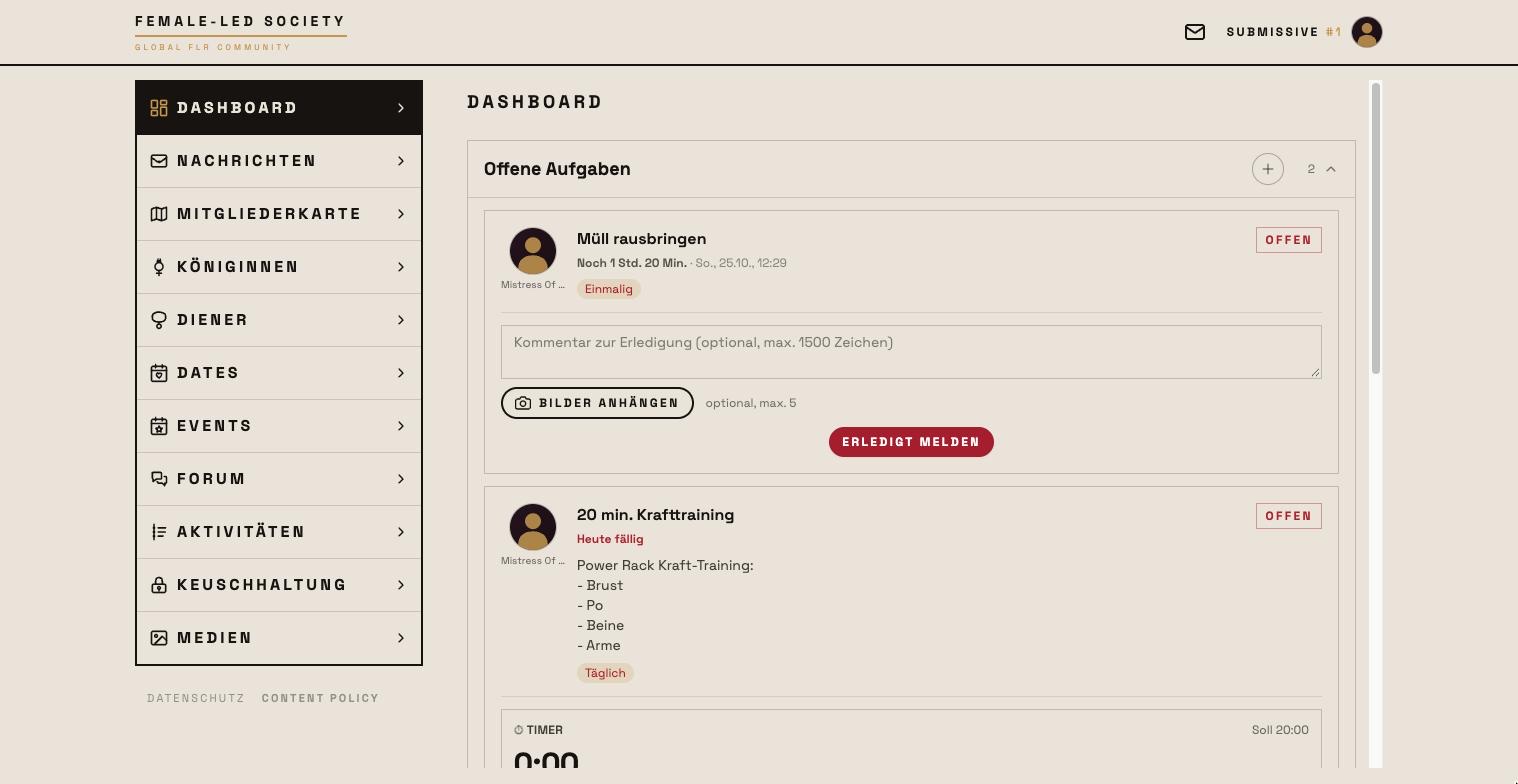
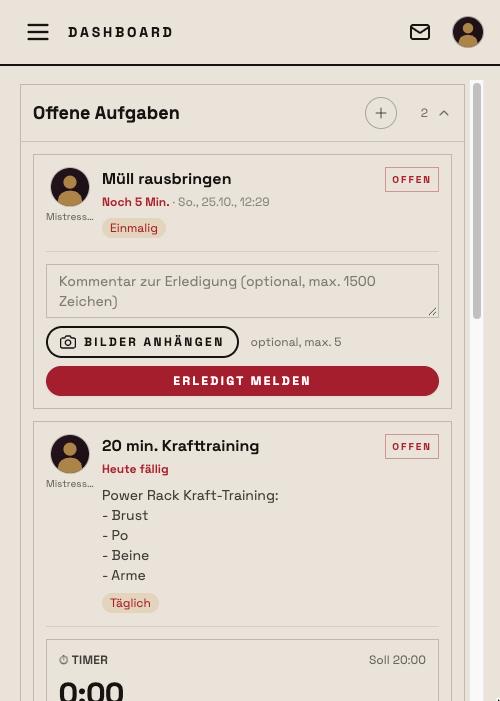
FLS is a web app: there is nothing in the App Store or on Google Play. You put the site on your home screen straight from the browser. After that FLS launches like any other app — full screen, no address bar, with its own icon. It takes half a minute and is the most important thing to do after signing up.
Why install?
- Notifications. On iPhone and iPad only the installed app can send push notifications — new messages, tasks, ratings. In the browser the switch for it stays hidden.
- Full screen. No browser bar, no accidental swipe back. Chat and media use the whole screen.
- Quick start. One tap on the icon and you are in; your login is remembered.
As long as you open FLS in the browser on your phone, a bar at the bottom reminds you. How to shows the steps for your device, Later hides the bar for seven days. It never appears in the installed app.
iPhone and iPad: Safari
- Open
www.fls.lifein Safari and log in. - Tap the share icon — the square with the arrow pointing up. It sits in the address bar; on newer iOS versions you find it behind the “…” menu next to the address.
- Scroll down the list and choose “Add to Home Screen”.
- Tap “Add” at the top right.
FLS now sits on your home screen with its own icon. On first launch you log in once more — the app has its own storage, separate from the browser.
If you open the link from your mail app, iOS often shows an embedded Safari without the “Add to Home Screen” option. Tap the Safari icon at the bottom right (“Open in Safari”) and follow the steps there.
iPhone and iPad: Chrome, Firefox, Edge
Since iOS 16.4 you can install web apps from other browsers too:
- In Chrome, tap the share icon to the right of the address. In Firefox or Edge, open the browser menu and choose “Share”.
- Choose “Add to Home Screen” — you may need to scroll down.
- Tap “Add”.
If the option is missing, open the page once in Safari and follow the steps above.
Android: Chrome
Chrome knows FLS is installable and offers it to you:
- Tap “Install” in the bar at the bottom. Chrome then shows its install dialog with screenshots.
- Confirm with “Install”.
Alternatively, you will find “Install app” or “Add to Home screen” in the browser menu ⋮ at the top right at any time.
Android: Samsung Internet
Do not install from the Samsung browser: it builds an app package targeting an outdated Android version, and from Android 14 on Google Play Protect blocks it with “Unsafe app blocked — this app was built for an older version of Android”. That is the browser's doing, not FLS; Samsung has known about it since April 2026. On Samsung devices the bar therefore shows “Open in Chrome”:
- Tap “Open in Chrome” — or start Chrome by hand and enter
fls.life. - Log in there; the bar appears again, this time with “Install”.
- Confirm Chrome's dialog. The app then sits on your home screen as usual; you no longer need Samsung Internet for it.
Android: Firefox, Edge, Opera
- Open the browser menu (⋮ or ≡, at the bottom or top depending on the browser).
- Choose “Install app”, “Add to Home screen” or “Add page to → Home screen”.
- Confirm.
From Instagram, Facebook or your mail app
If you open FLS from another app, that app shows its own small browser. Installing is not possible there — you first have to move the page to a real browser:
- Tap “…” or ⋮ at the top right.
- Choose “Open in browser” (Safari or Chrome).
- The bar appears there again; follow the steps for your browser.
After installing
- On first launch you log in once. After that your login is remembered.
- Switch on push notifications now: the dashboard offers it, and later you find the switch in your profile under Account → Notifications.
- The app updates itself. You never need to reinstall.
Removing
Like any app: hold the icon and choose “Remove App” (iOS) or “Uninstall” (Android). Your account and data are unaffected — they live on the server, not on the device.