What the Forum is
The Forum is the open space of FLS.life: a place for questions, experiences and discussions that do not belong in a private conversation. Every member can open a topic, and everyone else can reply — just as you know it from forums. The special part: a reply does not have to be written. If you would rather talk, simply record your contribution.
Reading topics
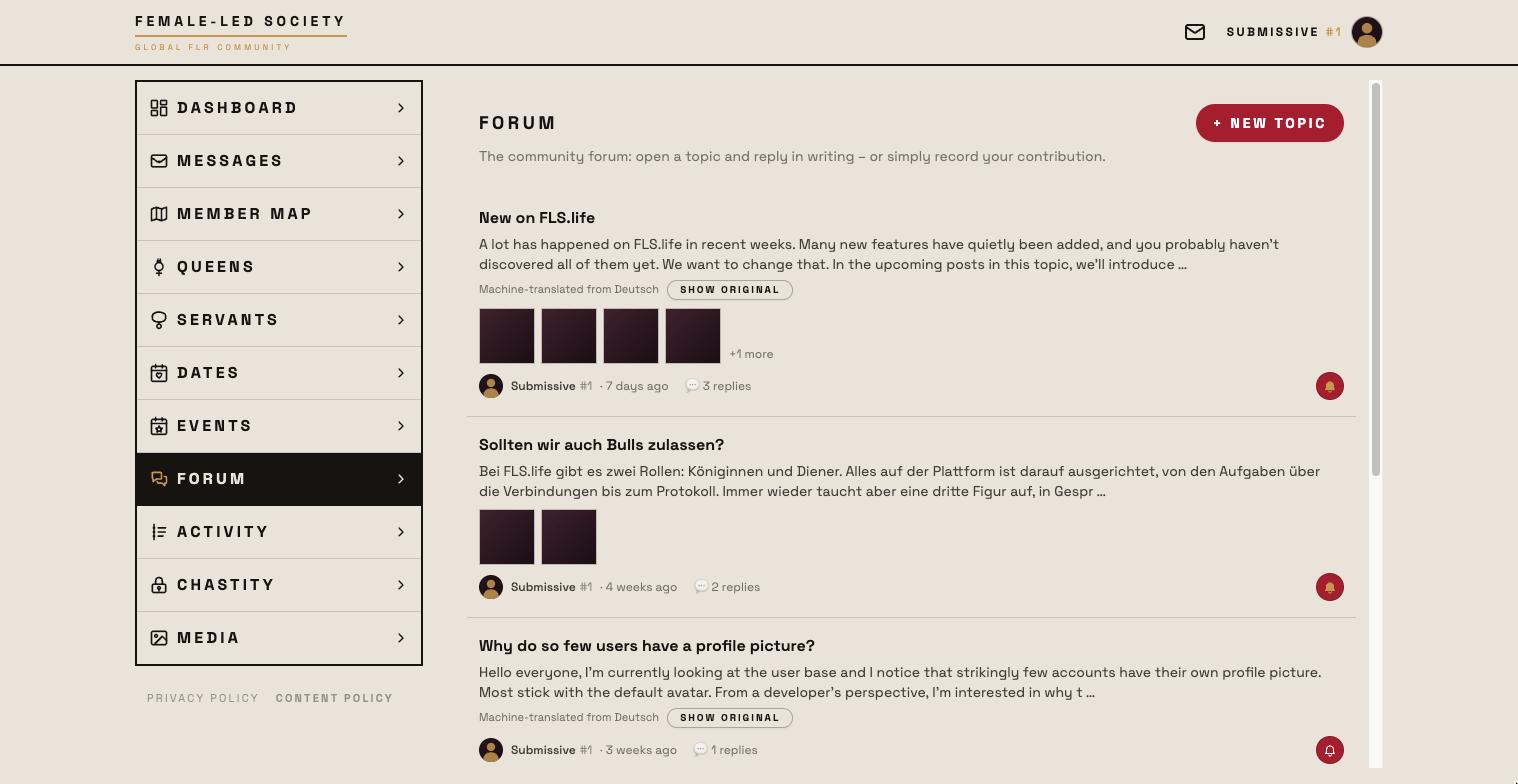
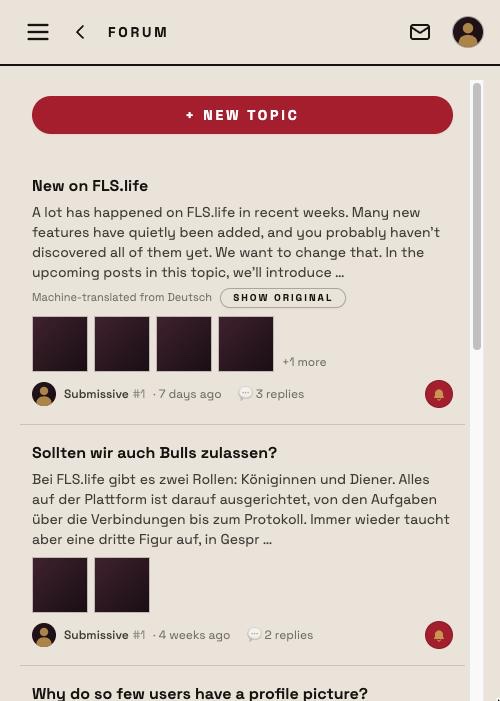
- Open Forum in the left menu.
- The list shows all topics, the most recently answered first. Under each title you see the beginning of the opening post, who wrote it, when — how many replies there are, when the last one came and — as small profile pictures — who is taking part (clicking one opens the profile). If a topic has images, up to four of the most recent ones appear below as small tiles — including images from replies; if there are more, +n more is shown next to them. Clicking a tile opens the image in full size without opening the topic.
- Click the title to open the topic with all replies in chronological order.
Posts in another language are offered for translation. Below every translated post you see Machine-translated from … with a Show original button — so you can read the member's own words for exactly this post without switching translation off for all the others; Show translation switches back. With translation off, the line reads Written in … with a Translate button.
Opening a topic
- Click + New topic.
- Enter a title — that is what others see in the list — and write your post below it.
- Open topic saves and takes you straight to the topic's page.
The opening post is always written, so the topic list stays readable.
Formatting text and attaching images
Above the text box are the formatting buttons: Heading, Subheading, List and Numbered list apply to the paragraph the cursor is in — clicking an active heading again turns it back into normal text; B and I make the selected text bold or italic; Link attaches an address to the selected text (with nothing selected the address itself becomes the link text, and a typed or pasted address turns into a link by itself; clicking Link again changes or removes it). Anyone who later clicks a link that leads out of FLS first sees a notice and opens the external site only after confirming, in a new tab. Enter starts a new paragraph; there are no line breaks inside a paragraph — so a heading always hits exactly the line you mean. Pasted text becomes one paragraph per line, and formatting from other programs is reduced to these formats.
Add images attaches up to four images — to a topic as well as to a written reply. They appear as tiles below the text; a click opens the image in full size. Images are scaled down on upload and are only available to signed-in members.
Replying — in writing or by voice
Below the last post is the reply box with two buttons:
- Write — type your text, attach images if you like, and Send reply. A reply may also consist of images only.
- Speak — Start recording, talk, Stop recording. Pause lets you stop in between and Resume carries on seamlessly; the pause is not audible in the recording. You can listen to the recording first and either discard it or post it with Send recording.
The first time, the browser asks for permission to use the microphone. A recording may be up to five minutes long and is stored as it is. Voice posts appear in the topic with a play button and their length; the recordings are only available to signed-in members.
Editing and deleting
You can edit your own topic at any time via the pencil icon at the top right: title and text in the usual editor, existing images can be kept or removed with the ✕, new ones are added via Add images — four in total at most. Save changes finishes; the topic does not move up the list because of it.
As the author you can also edit your written replies at any time via the pencil icon on the reply — text and images, just as with a topic. Voice posts cannot be edited, only deleted.
You can delete your own posts and your own topics via the trash icon. Deleting a topic removes all replies under it. Admins may remove any post.
Following a topic
Nobody is told automatically when someone replies in a topic — not even its author. If you want to know, set the bell:
- On the topic page it sits at the top right next to the pencil and the bin, in the topic list on the right of every row. One click switches Follow topic on — the bell fills in gold — a second one switches it off again.
- From then on you get a push notification for every new reply (written or spoken) with the name of the person replying and the topic title; tapping it opens the topic. There is no notification for your own replies, nor between members who have blocked each other.
- Nothing is sent by email — following works through push only. If push is off in your browser, the topic page tells you so below the header, with a link to the account settings.
The master switch for this — New reply in a topic you follow — is in your profile under Account among the push notifications; it applies to all followed topics together.
When an account is deleted
Topics and written posts remain, but without a name: they appear as Deleted member, so other people's discussions do not fall apart. Voice posts are deleted — a voice cannot be anonymised.
What the forum is not
The Forum is a public space within the community. Blocking a member has no effect here: if you have blocked someone, you still see their posts in the forum — the same as with events and feeds. For anything personal, use messages.